
How to Use a Laptop Screen Extender for Seamless Multitasking
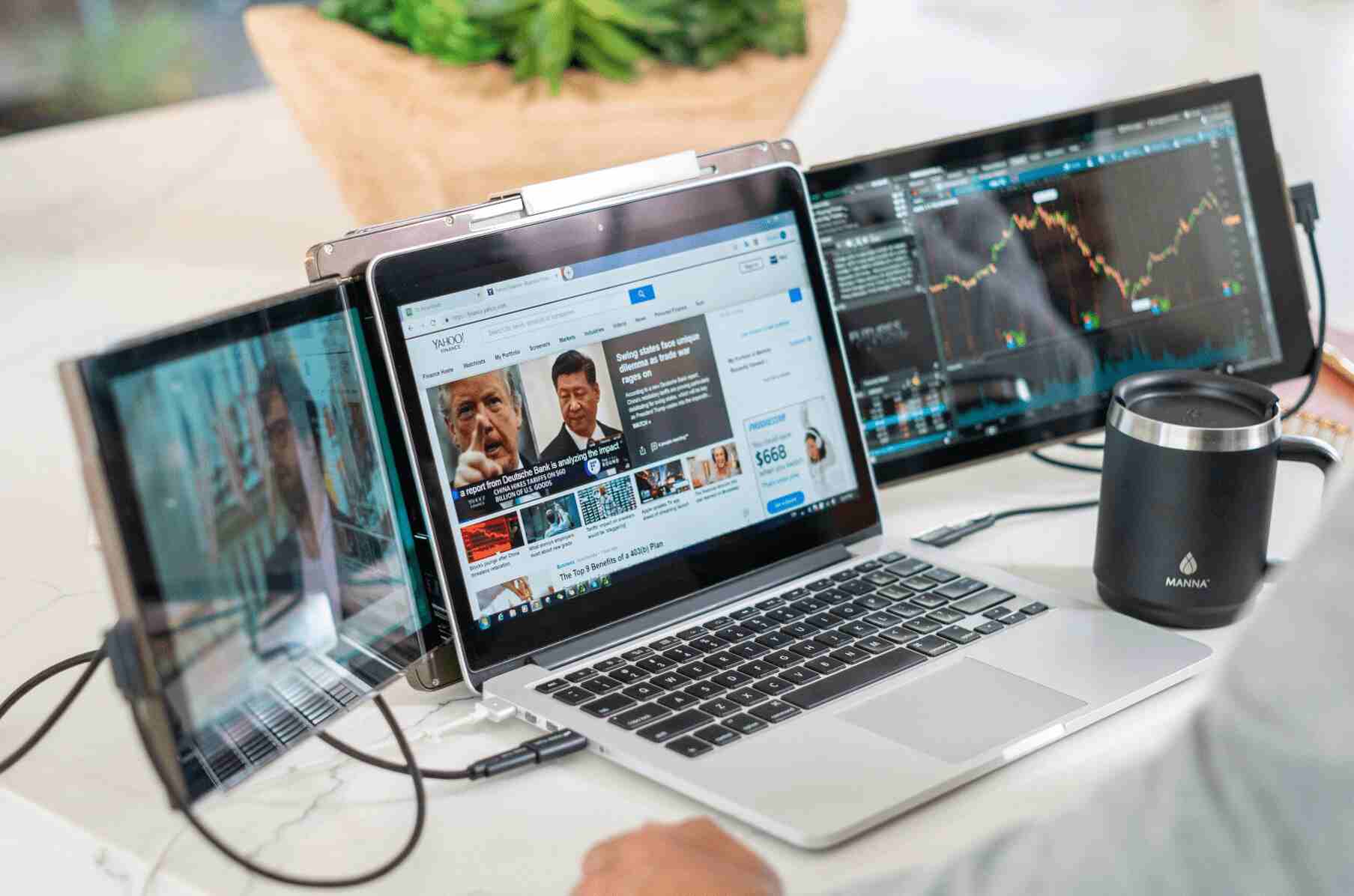
For all the computer geeks out there with their eyes glued to the screen, it may seem like a nonstop digital circus, bouncing between emails, Zoom calls, and spreadsheets, all crammed onto a single laptop screen. No doubt, it’s both frustrating and exhausting to maneuver split screens or constantly switch between windows. If the drill sounds familiar, a simple yet powerful solution exists that can elevate your workspace with a laptop screen extender.
Whether you’re a remote worker, managing an online store, or enjoy working while playing, a screen extender is designed to make multitasking truly effortless and more productive.
Why a Screen Extender for Your Laptop is a Game-Changer?

Simply put, a laptop screen extender is an additional display screen that can be attached to your laptop using a USB-C, HDMI, or other wireless connection. This will give you a screen duo that is a viable alternative to a typical full-size monitor- lightweight, portable, and perfect for people on the go.
What makes it stand out from a typical PC? Its USP lies in its multitasking capabilities, allowing you to engage in multiple tasks without losing focus or attention. Imagine the level of convenience when you could have a document open on one screen with your writing app or spreadsheet on the other, so you don’t have to bounce between applications or resize windows.
Looking for a game-changing setup? Check out Mobile Pixels’ lineup of screen extenders, which easily snap onto your laptop to provide instant digital space for work, play, or streaming. No wonder this is a great supplement to digital nomads, hybrid workers, and creatives alike.
How to Set It Up in Under 5 Minutes
Don’t fret, as setting up this device doesn’t require you to be a pro in managing cables. All it takes are the simple steps described below;
Unbox & Plug-In
Connect your screen extender to your laptop using a USB-C or HDMI cable. Most extenders offer an easy plug-and-play setup and work seamlessly with Windows, macOS, and even some tablets.
Adjust Display Settings
On Windows, go to Settings > Display and choose “Extend These Displays.” Mac users can click on System Preferences > Displays to avail of a similar feature.
Position & Go
To attach the extender, slide it on using its built-in clip, stand, or magnetic feature, keeping it at eye level for comfortable viewing.
Now, you can have bigger screen space without the clutter that comes with a separate monitor or full docking station.
A Minor Change Making a Big Difference
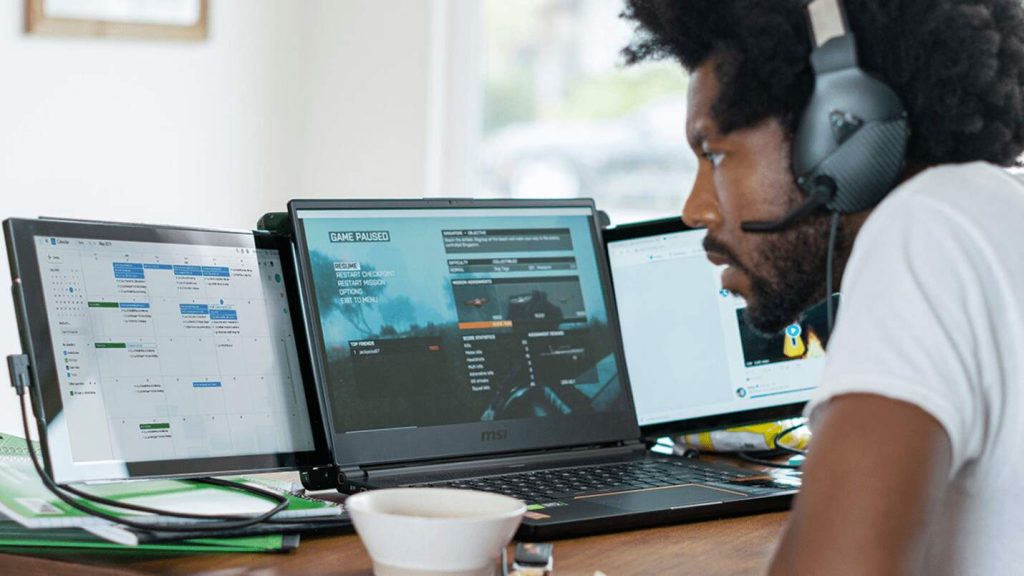
You don’t need to overhaul your work area to work more efficiently completely. A laptop screen extender is a simple and affordable addition that can enhance your productivity and reduce stress. This device offers a whole new way of working, whether you’re an entrepreneur, a business manager, or just binge-watching Netflix while catching up with Slack messages.
And just in case you’re curious—yes, it is made for traveling. Most extenders are flat when folded and weigh less than a tablet, so you can easily toss them in your backpack without stressing out.
Create a Workflow That Works for You
Tech should go with your flow, not disrupt it. Combine your new screen extender with solid time-blocking, app organization, and a little “do not disturb” time, and you’ll start crushing tasks like never before.
Looking for more productivity strategies from the pros? Harvard Business Review breaks down what it takes to become an effective multitasker, but it all starts with the right tools.


