
How to Tell If iPhone Is Unlocked – A Complete Guide for Every iPhone User
Suppose you’ve just bought a shiny iPhone at a bargain price, but before you start dreaming of switching carriers or traveling the world with it, there’s one question that can make or break your experience—is your iPhone unlocked?
An unlocked iPhone means freedom. You can use it with any carrier, take it abroad without worrying about expensive roaming charges, and even fetch a higher resale value. But if your iPhone is locked, you’re tied to one network, and switching won’t be possible without officially unlocking it.
In this article, we’ll walk through how to tell if your iPhone is unlocked, why it matters, different checking methods, and key things to keep in mind before making decisions.
Why Knowing If Your iPhone Is Unlocked Is Important
Before diving into the methods, it’s worth understanding why this matters:
- Carrier Freedom – Use SIM cards from different carriers.
- Better Travel Experience – Avoid roaming charges by inserting a local SIM abroad.
- Higher Resale Value – Buyers prefer unlocked iPhones.
- Plan Flexibility – Switch to cheaper or better plans anytime.
How to Tell If iPhone Is Unlocked – Multiple Methods
1. Check in iPhone Settings
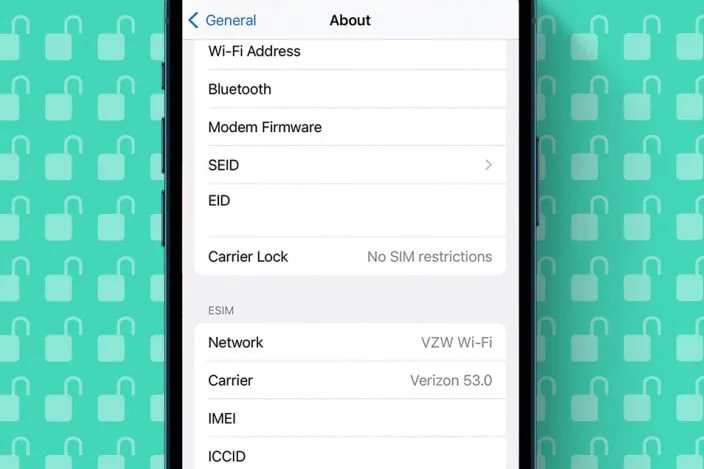
Apple makes it pretty simple to find this information in your settings:
- Open Settings on your iPhone.
- Scroll down and tap General.
- Select About.
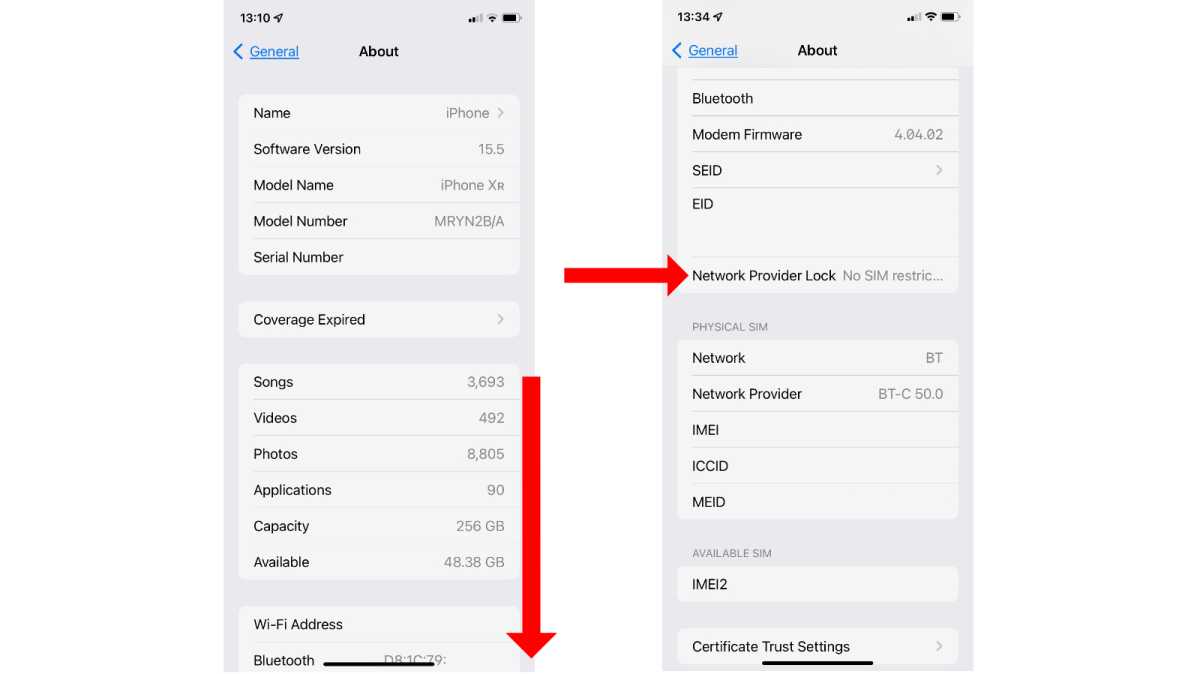
- Look for the field Carrier Lock or Network Provider Lock.
- If it says “No SIM restrictions”, your iPhone is unlocked.
- If it says “SIM locked” or shows a carrier name, it’s locked.
Pros: Quick and easy.
Cons: May not be accurate for iPhones running very old iOS versions.
2. Test with a Different SIM Card
This is one of the most reliable ways to check.
- Borrow a SIM card from a different carrier.
- Power off your iPhone.
- Remove your current SIM and insert the new one.
- Turn your iPhone back on.
- Try making a call or sending a text.
- If it works without an error, your iPhone is unlocked.
- If you see “SIM Not Supported” or “SIM Locked,” it’s locked.
Pros: Accurate, works even without internet.
Cons: Requires access to another SIM card.
3. Contact Your Carrier
If you bought your iPhone through a carrier, they can confirm its lock status.
- Call your carrier’s customer service.
- Provide your iPhone’s IMEI number (found in Settings > General > About).
- Ask them if the device is unlocked.
Pros: 100% accurate.
Cons: May take time, and some carriers only tell the original account holder.
4. Check Using Apple’s Official Support
Apple Support can verify your iPhone’s status if you contact them directly.
- Go to Apple Support via their app or website.
- Start a chat or call session.
- Give them your IMEI or Serial Number.
Pros: Direct confirmation from Apple.
Cons: Takes time, not as instant as checking settings.
5. Use Online IMEI Checker Tools

There are third-party tools that check your iPhone’s lock status using the IMEI number.
- Find your IMEI number (Settings > General > About).
- Enter it into a reputable IMEI checker.
- See results for lock status and sometimes warranty info.
Pros: Quick, detailed info.
Cons: Many services are paid, and not all are accurate.
Things to Consider When Checking iPhone Unlock Status
- Old iOS Versions – The “No SIM restrictions” option may not appear; you’ll need another method.
- Recently Unlocked iPhones – Sometimes it takes a few days for the status to update in Apple’s database.
- Scam Risks with Third-Party Tools – Only use trusted IMEI checkers.
- Travel Plans – If you’re traveling soon, confirm the status early to avoid surprises.
Signs Your iPhone Might Be Locked
- You can’t use SIM cards from another carrier.
- The device was purchased through a carrier with a contract.
- When inserting a new SIM, you see an error like:
- “SIM Not Supported”
- “Activation Required” tied to a specific carrier.
- Your phone doesn’t connect to the network after changing SIMs.
Unlocking a Locked iPhone

If you find your iPhone is locked, don’t worry—it’s usually possible to unlock it.
- Contact Your Carrier – Most carriers unlock iPhones after your contract ends or device is fully paid off.
- Apple Can’t Unlock It – Apple doesn’t unlock carrier-locked phones; only the carrier can.
- Beware of Unofficial Unlock Services – Many online “instant unlock” services are scams.
Quick Comparison of Methods
| Method | Speed | Accuracy | Cost | Requirements |
| Settings Menu | Instant | High (for new iOS) | Free | None |
| Different SIM Test | Instant | Very High | Free | Another SIM |
| Carrier Check | Slow | 100% | Free | IMEI + Account info |
| Apple Support | Medium | High | Free | Serial or IMEI |
| Online IMEI Checker | Fast | Varies | Sometimes Paid | IMEI |
Why an Unlocked iPhone Is More Valuable
- Travel-Friendly – Use local SIMs anywhere.
- Easier to Sell – Attracts more buyers and higher prices.
- No Carrier Control – You decide your plan, not your network.
- Future-Proof – Works with future carriers and upgrades.
Final Thoughts
Knowing how to tell if your iPhone is unlocked is not just a tech detail—it’s about freedom, flexibility, and value. Whether you’re planning to switch carriers, travel abroad, or sell your phone, confirming its lock status ensures you make informed decisions.
From quick settings checks to testing with a different SIM, you have multiple methods to verify. And if you discover it’s locked, contacting your carrier for an official unlock is always the safest path.
An unlocked iPhone is like a passport to mobile freedom—make sure yours is ready to take you anywhere.